
How to Install IPTV on VLC Player
3.6Add IPTV to VLC Media Player on Windows, Mac, Android, and iOS using your M3U link. Learn to load channels, open the playlist, and record streams.
VLC Media Player is a free, open-source, cross-platform media player and streaming server from the VideoLAN project. It can play IPTV streams directly from an M3U link, making it a quick way to test a playlist. You can download it from the official site at videolan.org.
Note: VLC for iOS and Android cannot play an M3U list with more than 10 items. Many IPTV players, however, support VLC as an external player.
Add IPTV channels in VLC
Time needed: 3 minutes.
- Enter your M3U link — Go to File > Open Network and paste your M3U link into the URL field, or press Ctrl+N (Command+N on Mac) and enter the link.
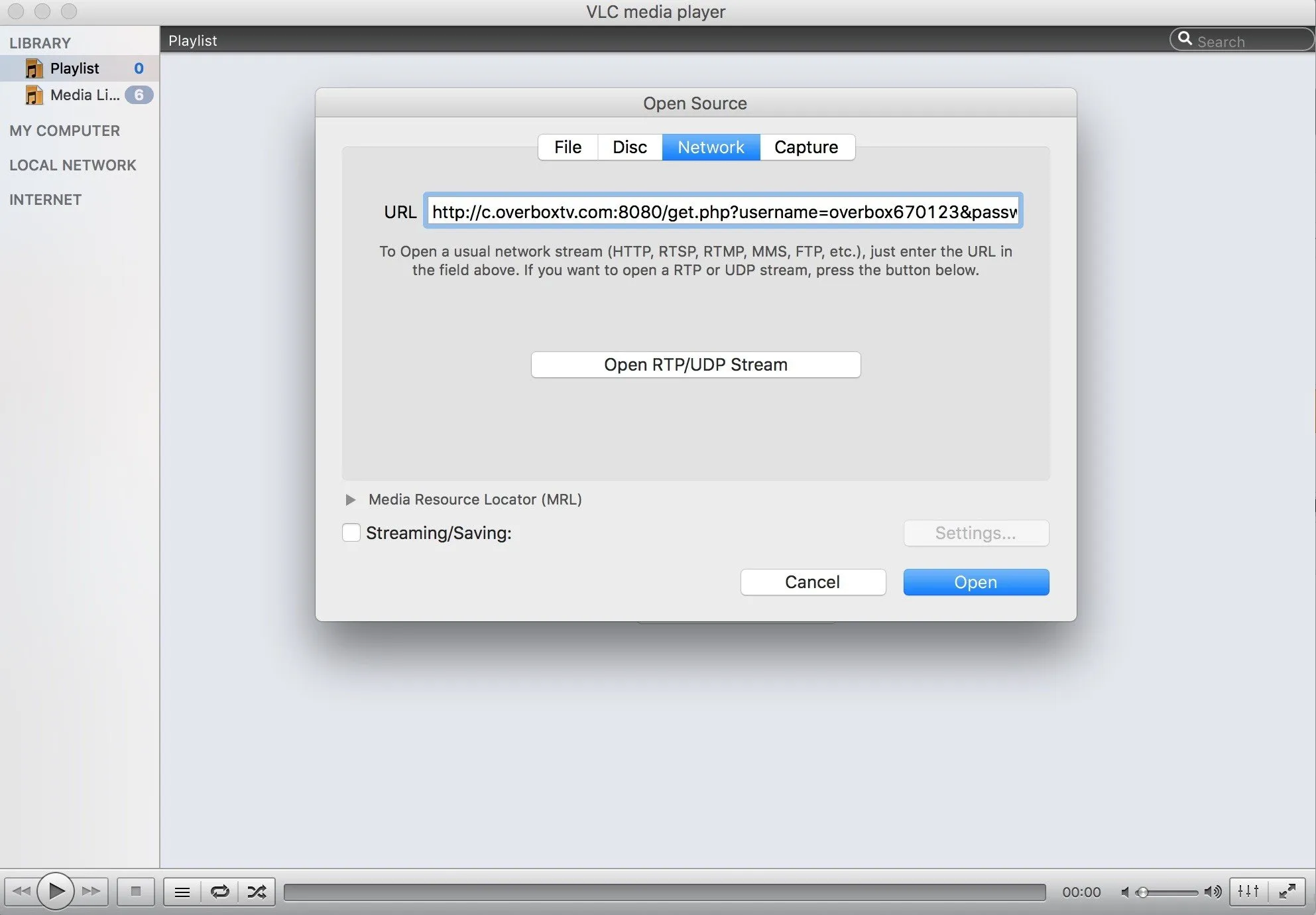
- Open the channel list — Click Open, then click the three-line icon to show the channel list (or press Ctrl+L).
Record IPTV streams on Mac
- After entering your M3U link, enable Stream output, then click Settings.
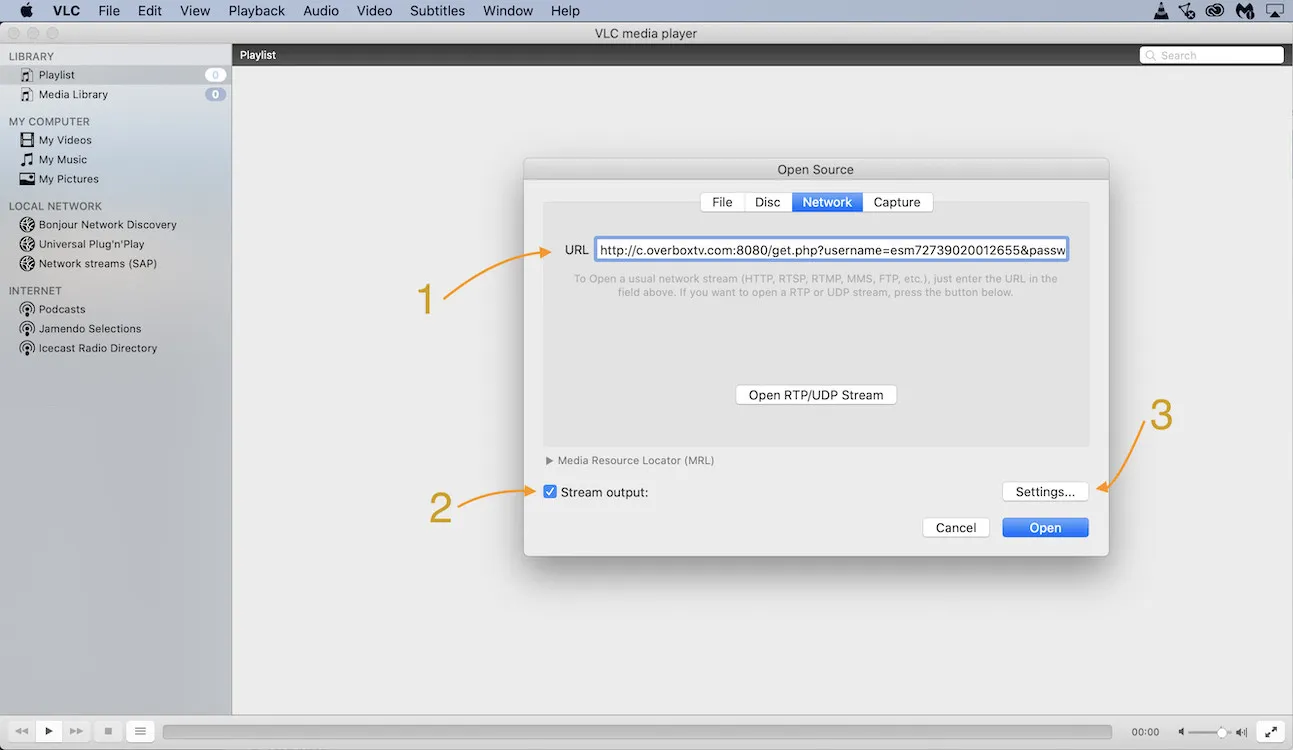
- Choose a save location in the File section and press OK.
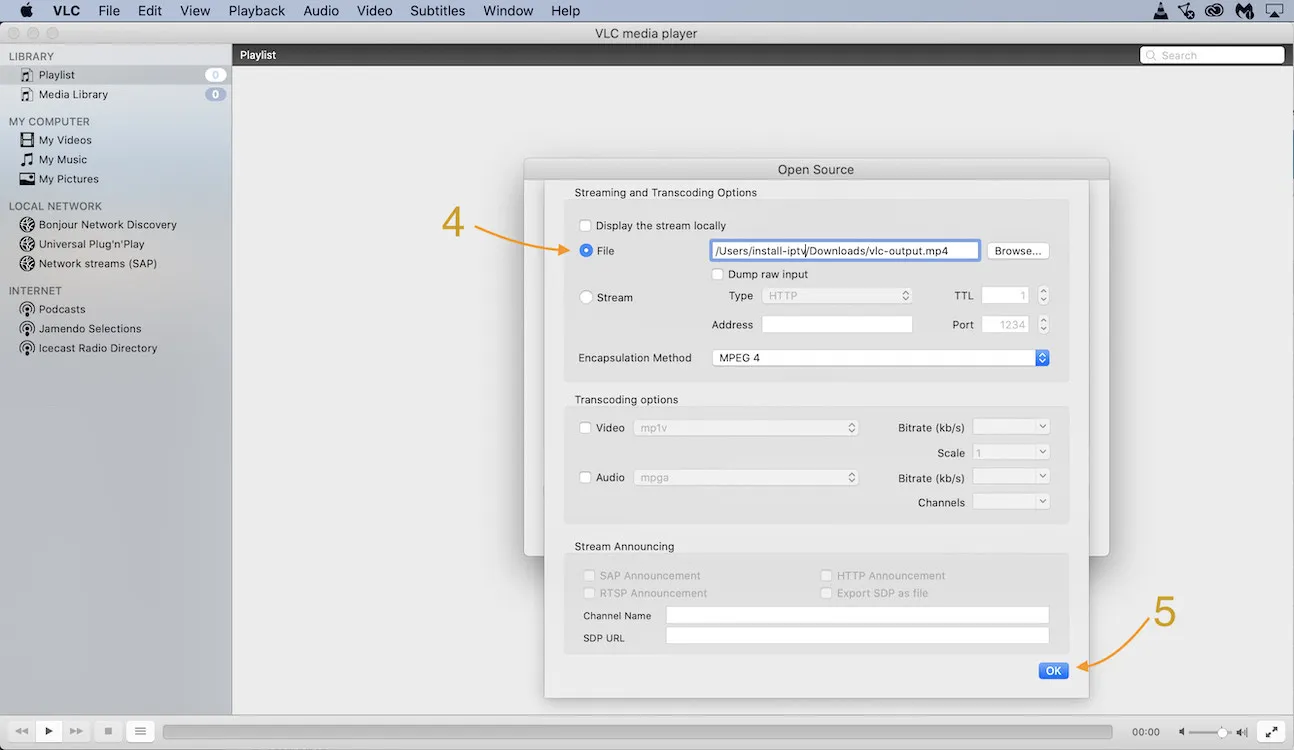 3. Click Open to load the channels. To record, go to Playback > Record, and select Stop when you’re finished.
Frequently asked questions
Why does VLC crash while loading M3U links?
This typically happens with extremely large playlists exceeding about 60,000 items. Reduce the number of channels and VOD entries through your provider dashboard, then reload the trimmed list.
Can I view channel and VOD groups in VLC?
No, that isn’t possible in VLC. For grouped channels and VOD categories, use a dedicated IPTV player.
Does VLC work on phones and tablets?
VLC on iOS and Android is limited to M3U lists of 10 items or fewer. For larger lists on mobile, use an IPTV app that can call VLC as an external player.