
How to Install IPTV on TeamBlue (GigaBlue)
Set up your IPTV subscription on a GigaBlue receiver running a TeamBlue image. Upload your userbouquet file over FTP with WinSCP in a few simple steps.
This tutorial walks you through installing and configuring an IPTV subscription on a GigaBlue (Vu+ style) receiver running a TeamBlue Enigma2 image. The process applies to most GigaBlue models, including the HD 800 Solo, HD 800 SE, HD 800 UE, HD Ultra UE, HD X1, HD X3, HD Quad, and UHD 4K versions.
What you’ll need
- WinSCP — a free FTP client used to transfer files to the receiver.
- Angry IP Scanner — to find the IP address of your GigaBlue box on the local network.
- A userbouquet.favourites.tv file — the channel list, supplied by your IPTV provider or generated from your M3U link.
Note: Make sure your GigaBlue receiver and your computer are connected to the same network before you begin.
Step 1 — Find your receiver’s IP address
Open Angry IP Scanner and scan your local network. Locate your GigaBlue box
in the results and note its IP address (for example, 192.168.1.100). You can
also read the IP directly from the receiver’s network settings menu.
Step 2 — Connect with WinSCP
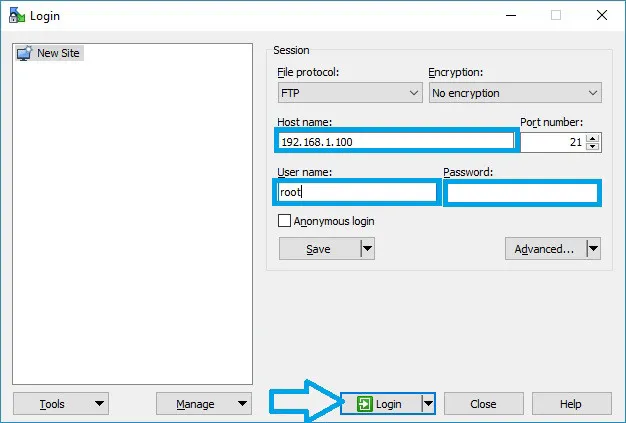
Launch WinSCP and create a new session with these settings:
- File protocol: FTP
- Host name: the IP address of your box (e.g.
192.168.1.100) - User name:
root - Password: leave empty (the TeamBlue default)
- Click Login.
Step 3 — Upload the channel file
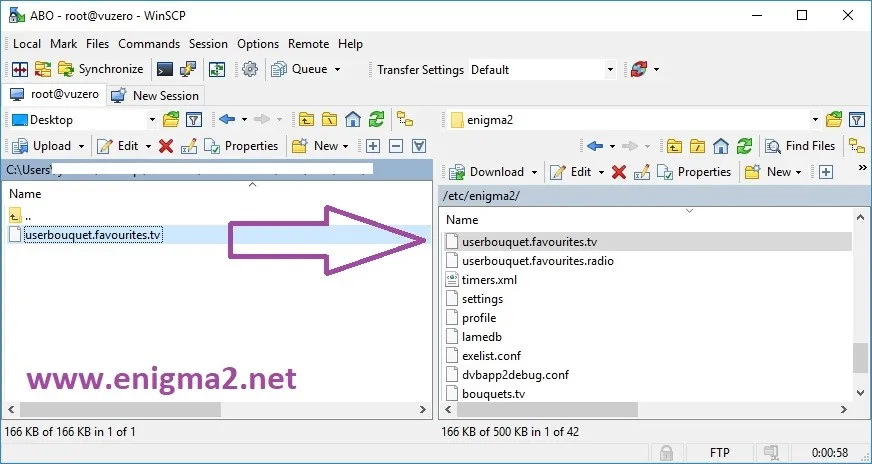
In WinSCP you’ll see two panes: your computer on the left and the receiver on the right. On the receiver side, browse to the /etc/enigma2 folder, then drag your userbouquet.favourites.tv file from your computer into that folder.
Step 4 — Restart the receiver
Reboot the GigaBlue box (or restart the Enigma2 GUI) so it reloads the bouquets. When it comes back up, your IPTV channel list will appear in the channel bouquets.
Frequently asked questions
Where do I get the GigaBlue channel file?
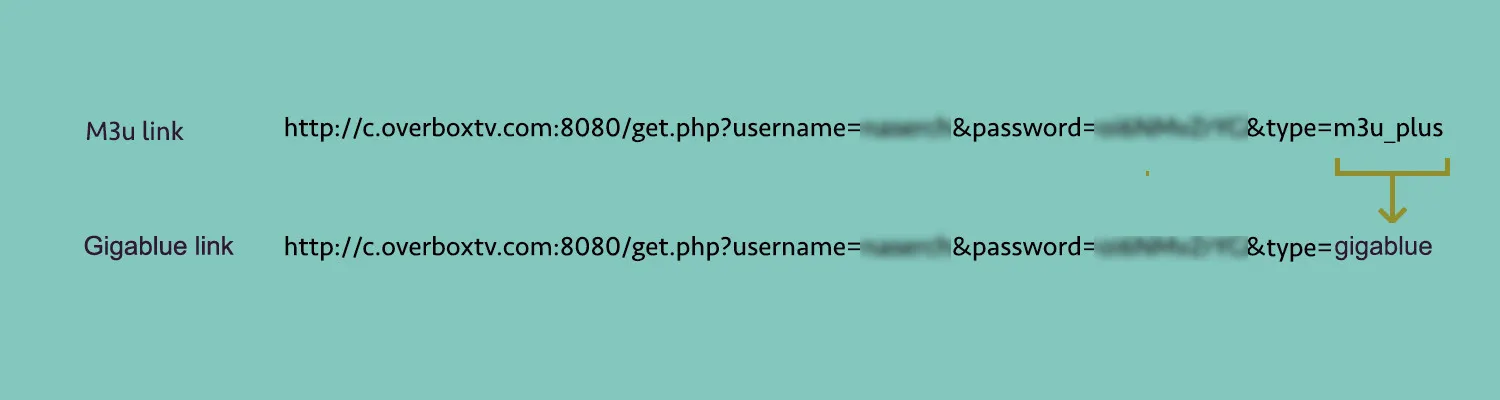
Your IPTV provider usually supplies the userbouquet.favourites.tv file. In roughly 90% of cases, however, you can create it yourself from your M3U link: open the provider’s GigaBlue/Enigma2 export link in a web browser and download the file it generates.
What login should I use over FTP?
For a standard TeamBlue image, use the user name root with an empty password. If you set your own password on the receiver, use that instead.
The channels don’t show up after uploading
Double-check that the file was placed in /etc/enigma2 and that you restarted the receiver afterward. If the bouquets still don’t appear, restart the Enigma2 GUI from the receiver’s menu.