
How to Install IPTV on Duplex IPTV
2.9Install and set up Duplex IPTV on Smart TV, Android, Fire TV and more. Add your Xtream Codes playlist via the Duplex management portal in minutes.
Duplex IPTV is a popular cross-platform IPTV player with a clean interface and handy features such as multiple favorite lists, EPG support, fast channel switching, a channel preview window, and parental controls. Unlike most players, you add your playlist through an online management portal rather than directly inside the app.
Where to download Duplex IPTV
- Android / Android TV: Google Play Store (
com.duplexiptv) - LG webOS: LG Content Store
- Samsung Tizen OS: Samsung App Store (USA only)
- Windows / Xbox: Microsoft Store
- Amazon Fire TV: sideload required (see the FAQ below)
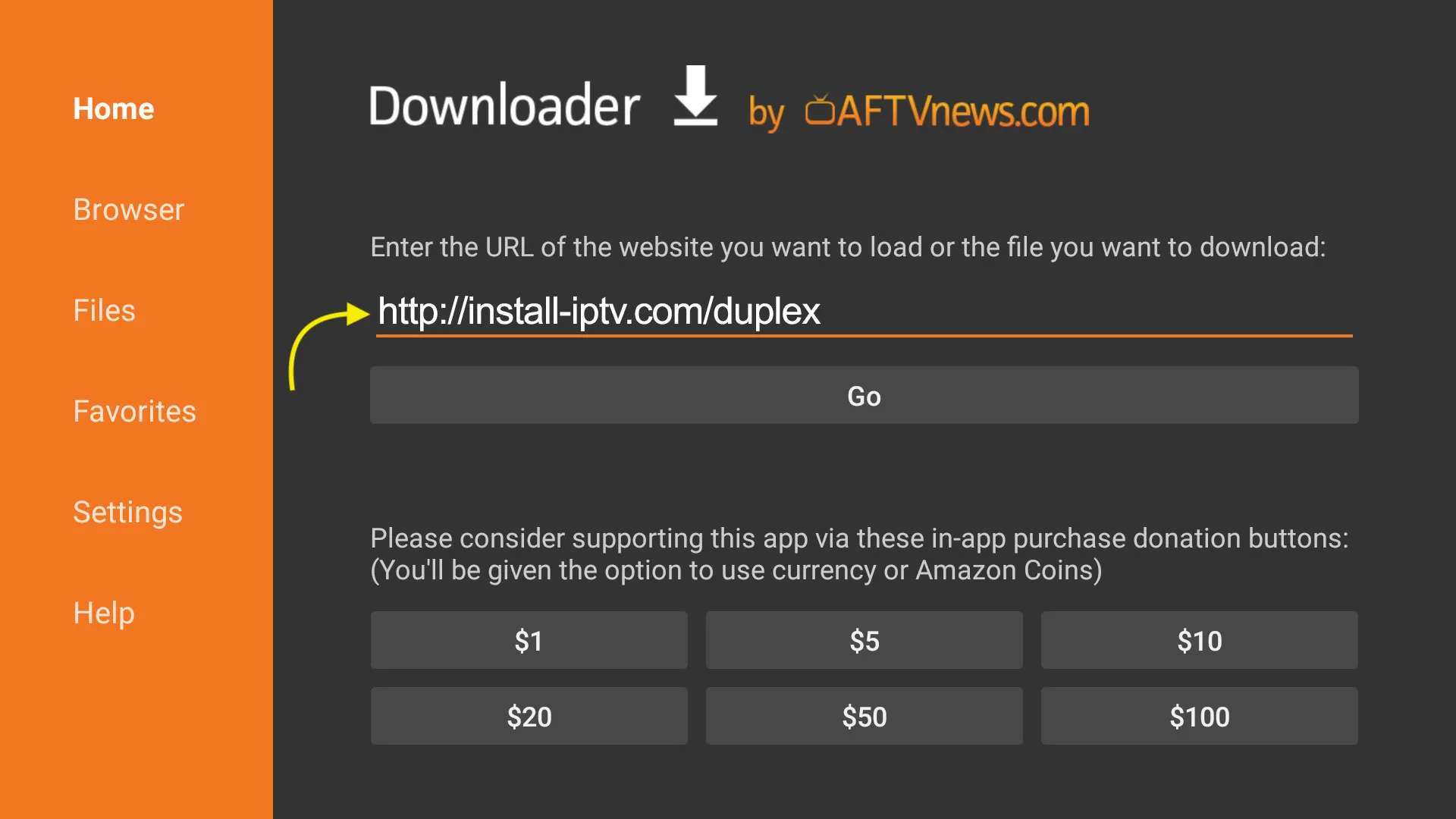
How to set up Duplex IPTV
The whole process takes about four minutes.
Step 1 — Get your device credentials
Launch Duplex IPTV and open the activation tab. Make a note of your Device ID and Device Key — you’ll need both to link your device to the management portal.
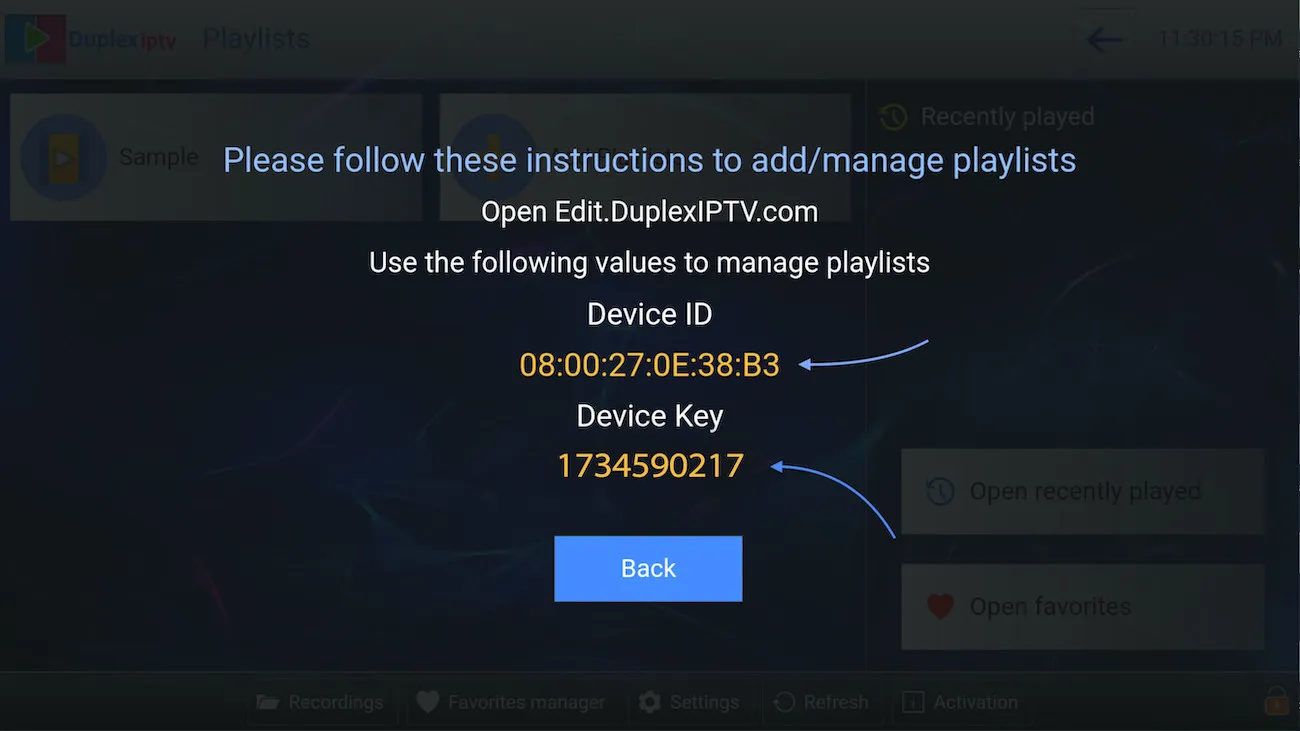
Step 2 — Open the management portal
On any device, go to edit.duplexplay.com. Enter your Device ID and Device Key, then select Manage Device.
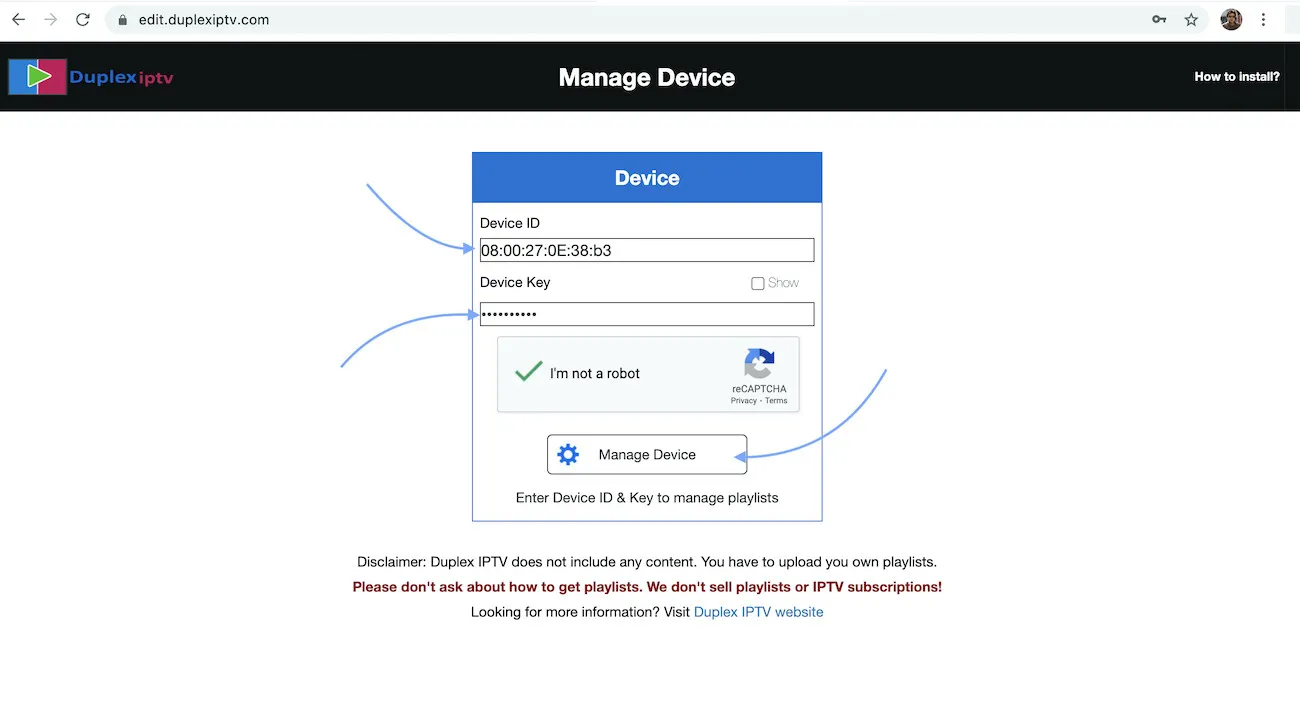
Step 3 — Add your playlist
Choose to add a new playlist. We recommend the Xtream connection method, which works with most providers. Enter the Username, Password, and Host (server URL) from your IPTV provider, give the playlist a name, complete the Captcha verification, and save.
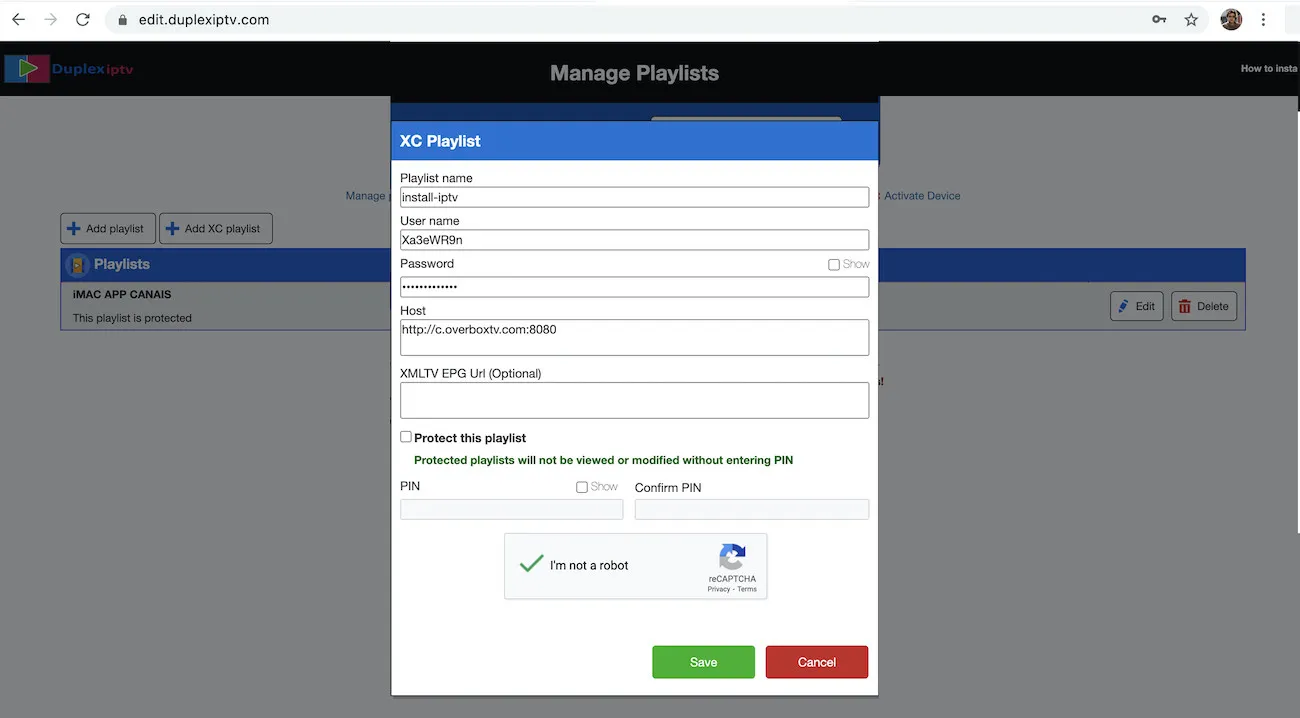
Step 4 — Refresh the app
Go back to Duplex IPTV on your device and select Refresh. The app reloads your playlist, and your channels, movies, and EPG will be ready to watch.
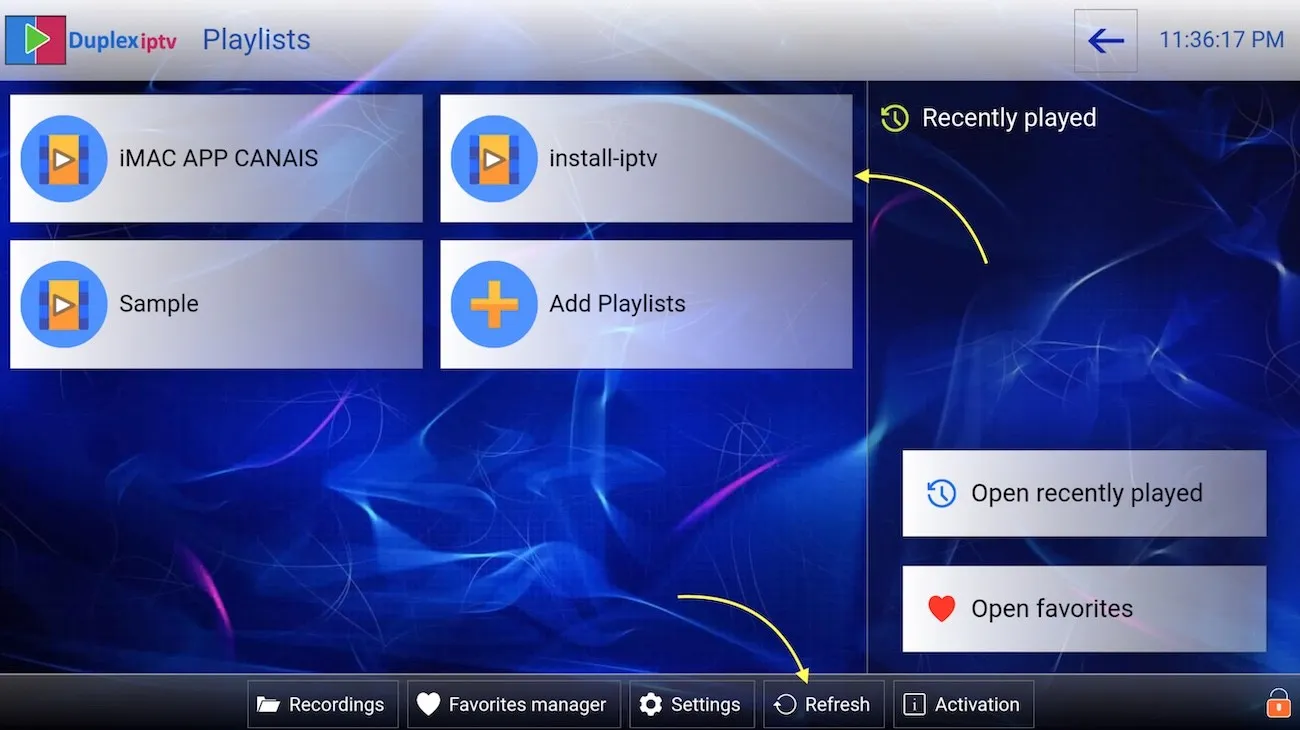
Note: If your channels don’t appear immediately, refresh once more — the app sometimes needs a moment to sync with the portal.