
How to Install IPTV on Smart STB
3.6Install IPTV on Smart STB for Samsung, LG, and Android TV. Find your MAC address, start the 7-day free trial, and add your Stalker portal in minutes.
Smart STB is a MAC address-based IPTV app that emulates a MAG set-top box, giving you a full portal-style IPTV experience on your TV. It works on Samsung (Tizen OS) and LG (webOS) Smart TVs as well as Android TV devices and Android phones and tablets. It comes with a 7-day free trial, after which you can buy a license through the website’s billing system.
Important: Smart STB does not include any channels. You must have an active IPTV subscription, and your provider must support Stalker portal / MAG connections.
Supported devices
- Samsung Smart TVs (Tizen OS)
- LG Smart TVs (webOS)
- Android TV devices
- Android smartphones and tablets
Step 1 — Install the app and find your MAC addresses
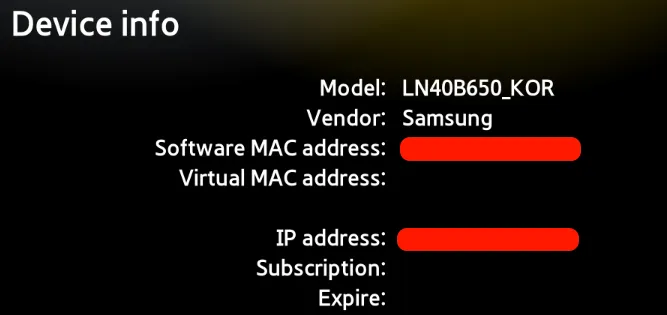
Install Smart STB from your TV’s app market and open it. Go to Device Info, where you’ll see two MAC addresses:
- Software MAC — used to activate the app on the Smart STB website.
- Virtual MAC — used to activate your IPTV service on your provider’s server.
Make a note of both addresses. You’ll need the Software MAC for the next step and the Virtual MAC for your IPTV provider.
Step 2 — Start the 7-day free trial
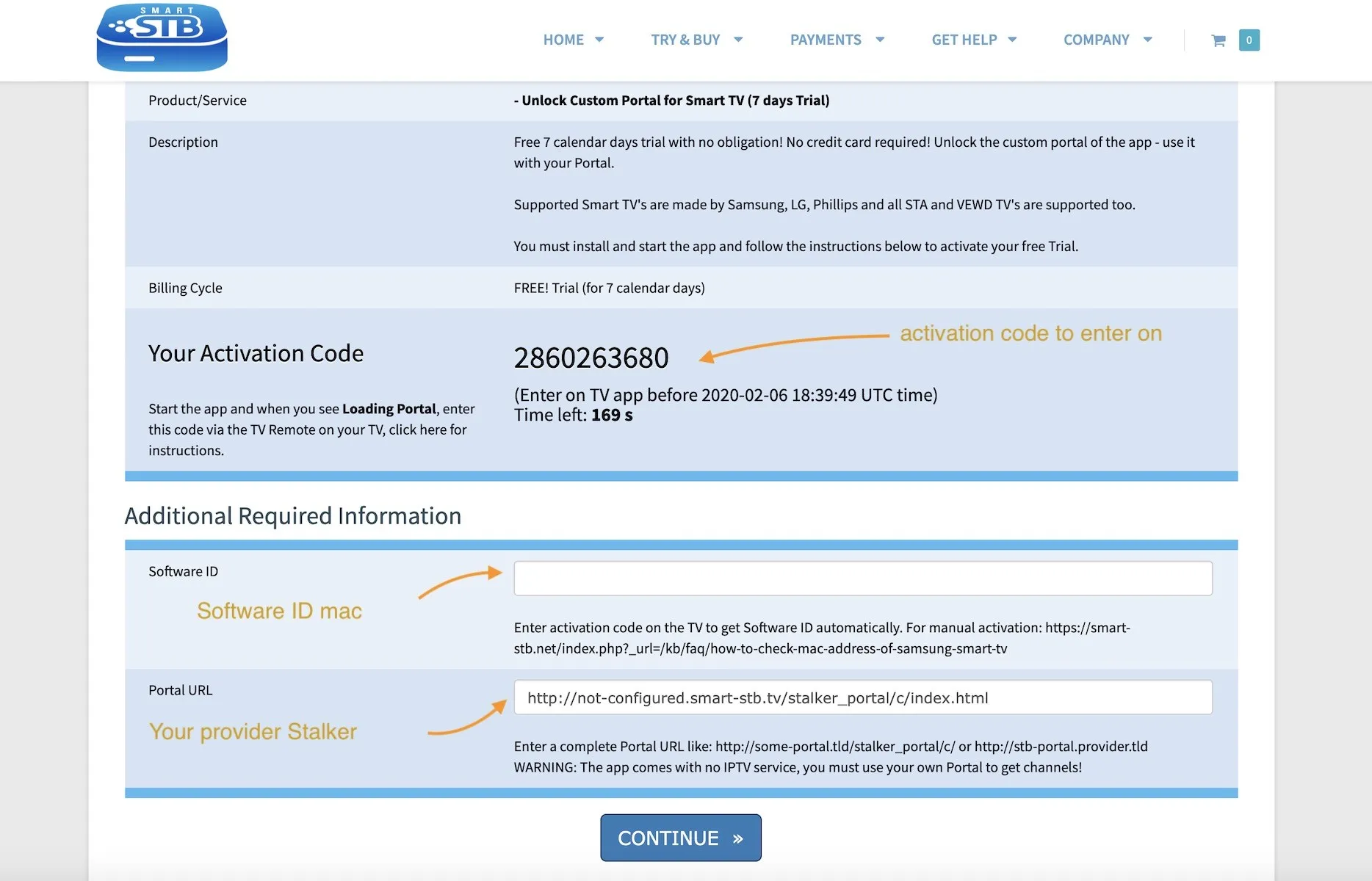
- On a computer or phone, open the Smart STB trial order page at smart-stb.net.
- Enter your Software MAC address and your Stalker portal address.
- Continue to checkout.
Step 3 — Create an account and activate
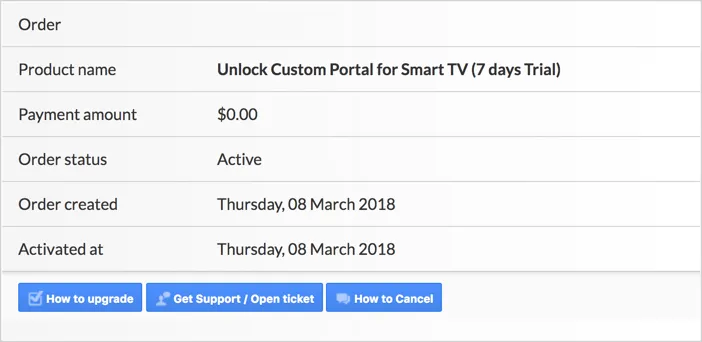
If you don’t already have one, create a Smart STB website account. After you register and log in, complete the zero-price checkout to begin the trial. When it’s active, the Order Status changes to Active.
Step 4 — Authorize your provider
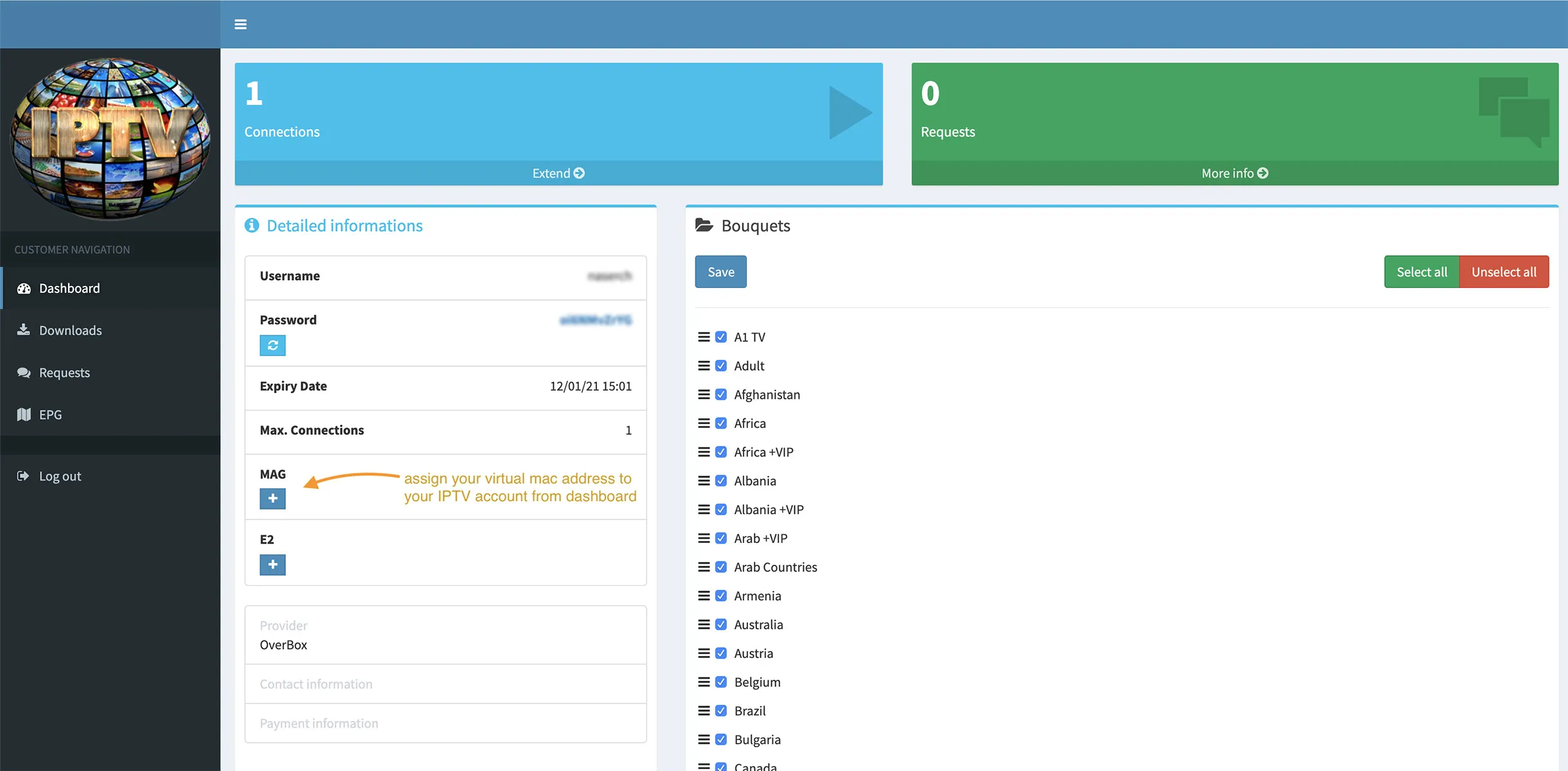
Give the Virtual MAC from the app’s Device Info page to your IPTV provider so they can register your device on their server. Once authorized, your channels and VOD load through the portal.
Activate a paid license
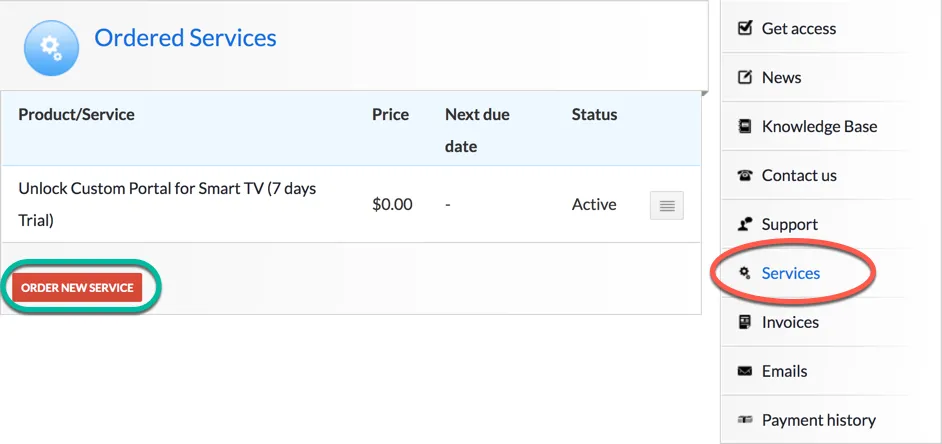
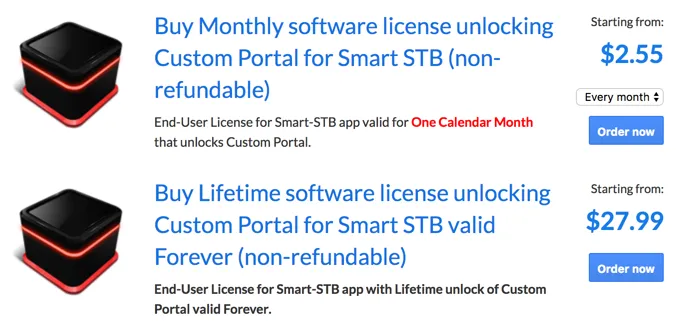
When the trial ends, open the Smart STB billing client area, choose Services, then Order New Service to subscribe to a monthly or yearly license. Lifetime packages show a status of Paid with an expiry date of Never.
Frequently asked questions
How do I add my MAC address to my IPTV server?
Use the Virtual MAC from the app’s Device Info page. Most providers offer an advanced dashboard where you can register it yourself. If you can’t find the option, contact your provider.
Where do I find the Stalker portal address?
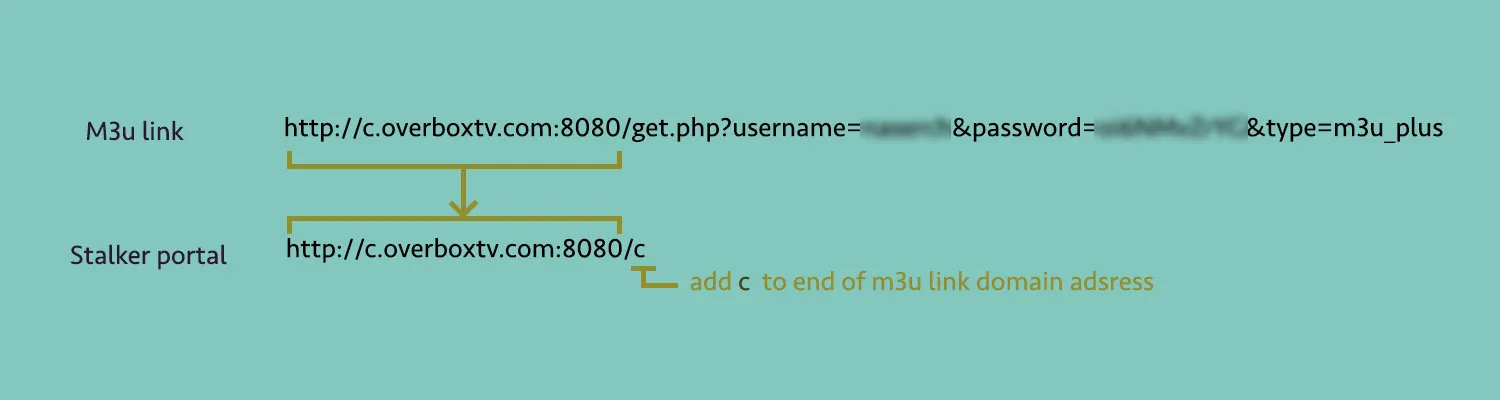
Look in your IPTV provider’s advanced dashboard. If it isn’t shown, you can usually extract the Stalker portal from your M3U link — this works with about 90% of providers.
Are there alternative apps?
Yes. Depending on your device, alternatives are available for Android TV, Samsung (Tizen), and LG (webOS).