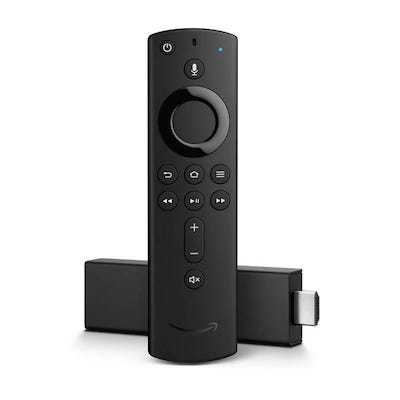
How to Install IPTV on Fire TV Stick
Install IPTV apps on your Amazon Fire TV Stick by enabling unknown sources and using the Downloader app to sideload TiviMate, IPTV Smarters, and more.
The Amazon Fire TV Stick is a small but powerful streaming stick that runs a version of Android. Because most IPTV player apps are not available in the Amazon App Store, you usually have to sideload them by installing the APK directly with the Downloader app. This guide shows you how.
Step 1 — Allow apps from unknown sources
Before you can sideload, you need to let your Fire TV install apps from outside the Amazon store.
- From the main menu, scroll right to Settings.
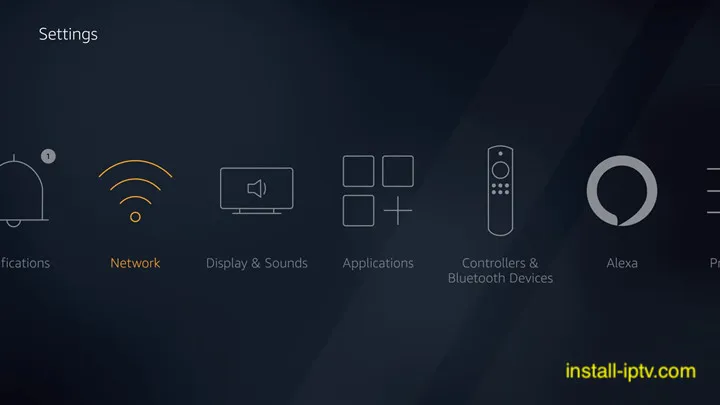
- Select My Fire TV.
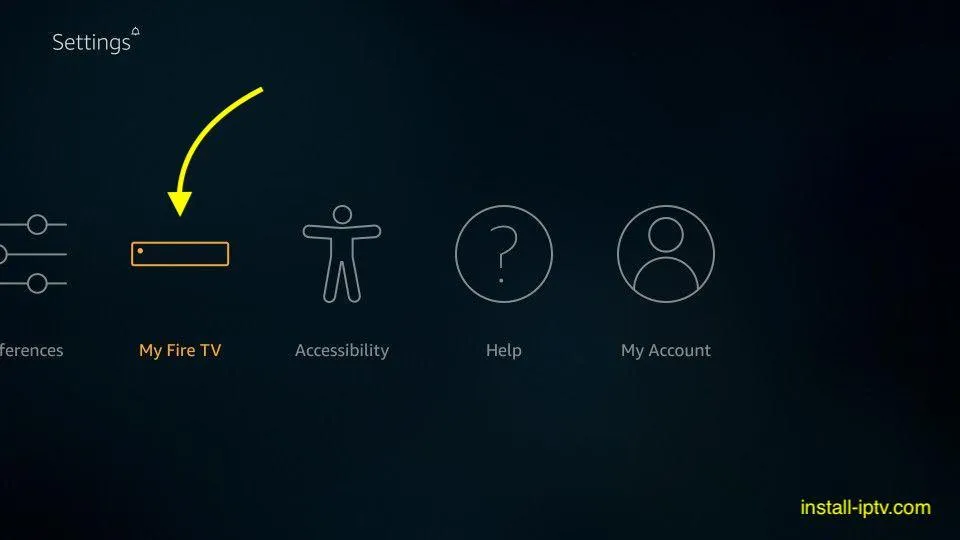
- Open Developer options.
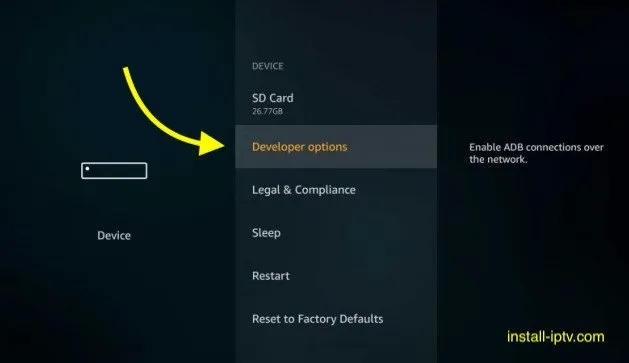
- Select Apps from Unknown Sources.
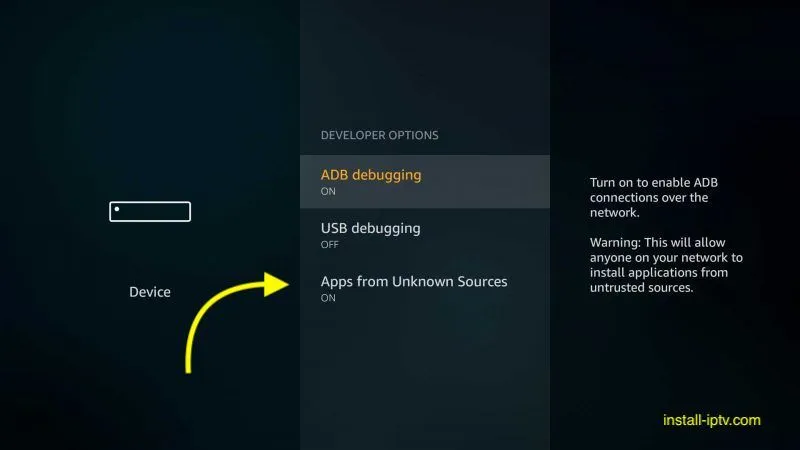
- Toggle the setting On to allow installations from unknown sources.
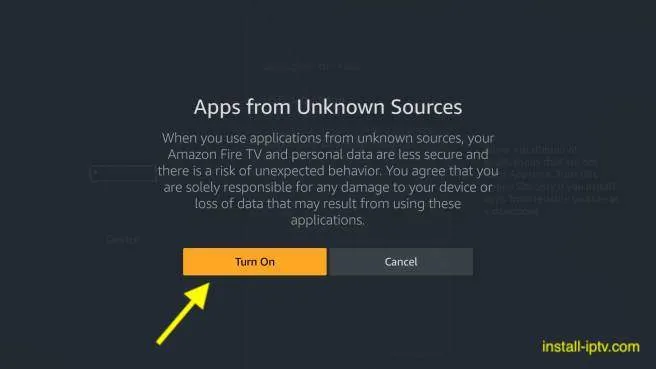
Note: If you do not see Developer options, open My Fire TV > About, highlight your device name, and click it several times until developer mode is unlocked.
Step 2 — Install the Downloader app
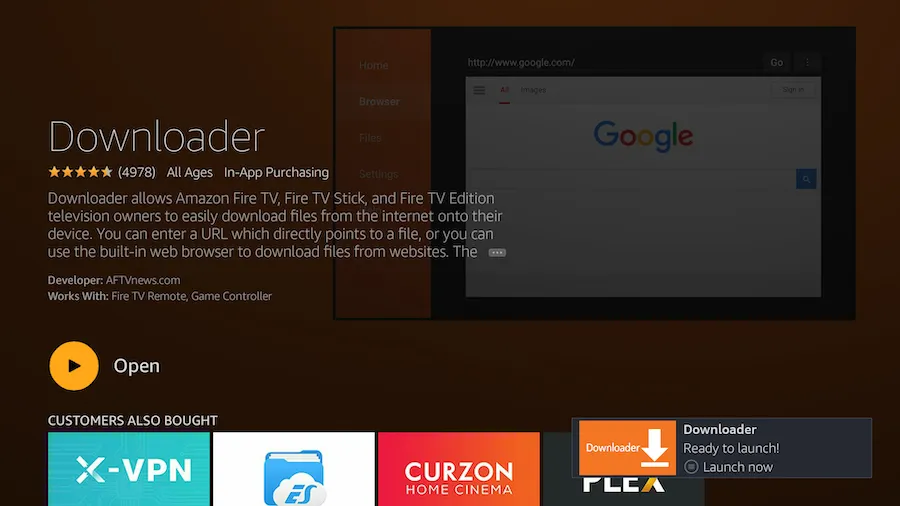
- Return to the home screen and use the search to find the Downloader app.
- Select it and install it from the Amazon store (this app is available there).
Step 3 — Enter the APK link
Open Downloader and type the direct link for the IPTV app you want to install. Common options include:
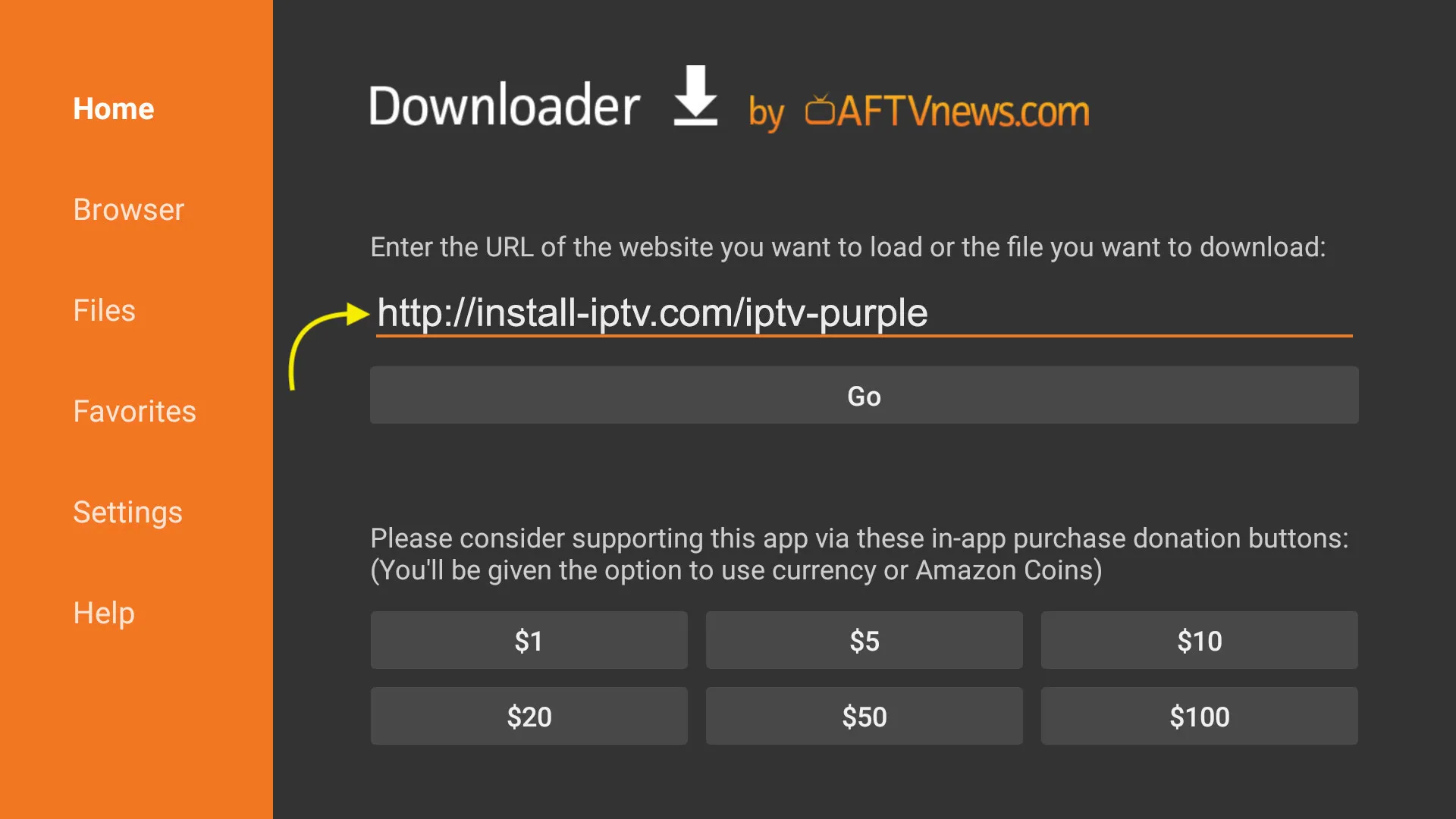
- TiviMate —
install-iptv.com/tivimate - Duplex IPTV —
install-iptv.com/duplex - IPTV Smart Purple —
install-iptv.com/iptv-purple - IPTV Smarters Pro —
install-iptv.com/iptvsmarters
Step 4 — Complete the installation
Let the APK finish downloading, then run the installer and confirm the installation. When it is done, open your new IPTV app and sign in with the M3U playlist or Xtream Codes credentials from your provider.
Tip: After installing, you can delete the downloaded APK file from within Downloader to free up space.
Frequently asked questions
Why aren’t IPTV apps in the Amazon App Store?
Most IPTV players are not listed in the store, so sideloading the APK with the Downloader app is the standard way to install them on Fire TV.
Can I turn off unknown sources afterward?
Yes. Once your IPTV app is installed, you can safely switch Apps from Unknown Sources back off if you prefer.