How to Install IPTV on myIPTV Player (Windows & Xbox)
3.3Install IPTV on myIPTV Player for Windows 10/11 and Xbox — add your M3U playlist and EPG, then watch live channels and VOD in a few steps.
myIPTV Player is an excellent media player with EPG support for playing your IPTV channels on Windows Phone, Windows 10 and above, and Xbox. It loads M3U playlists from local storage or a remote URL.
Get the app: Install myIPTV Player free from the Microsoft Store.
How to add IPTV channels to myIPTV Player
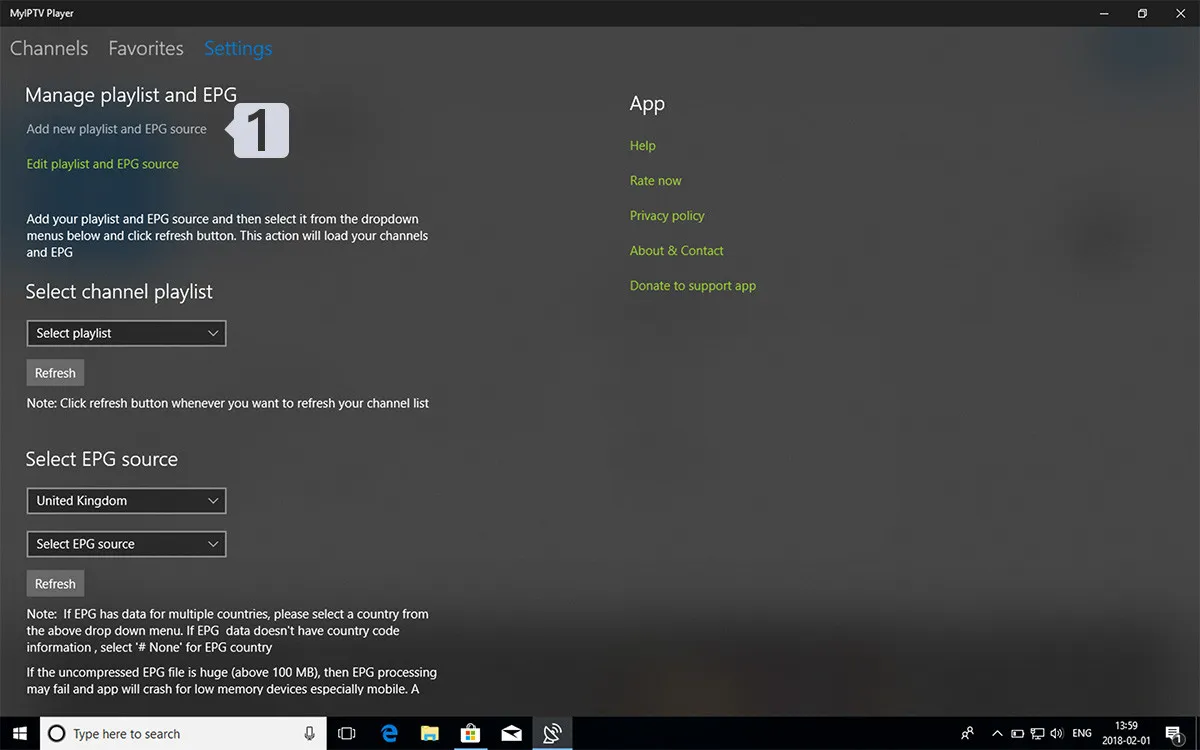
Step 1 — Open the playlist settings
Open the Settings tab and select Add new playlist and EPG source.
Step 2 — Enter your M3U link
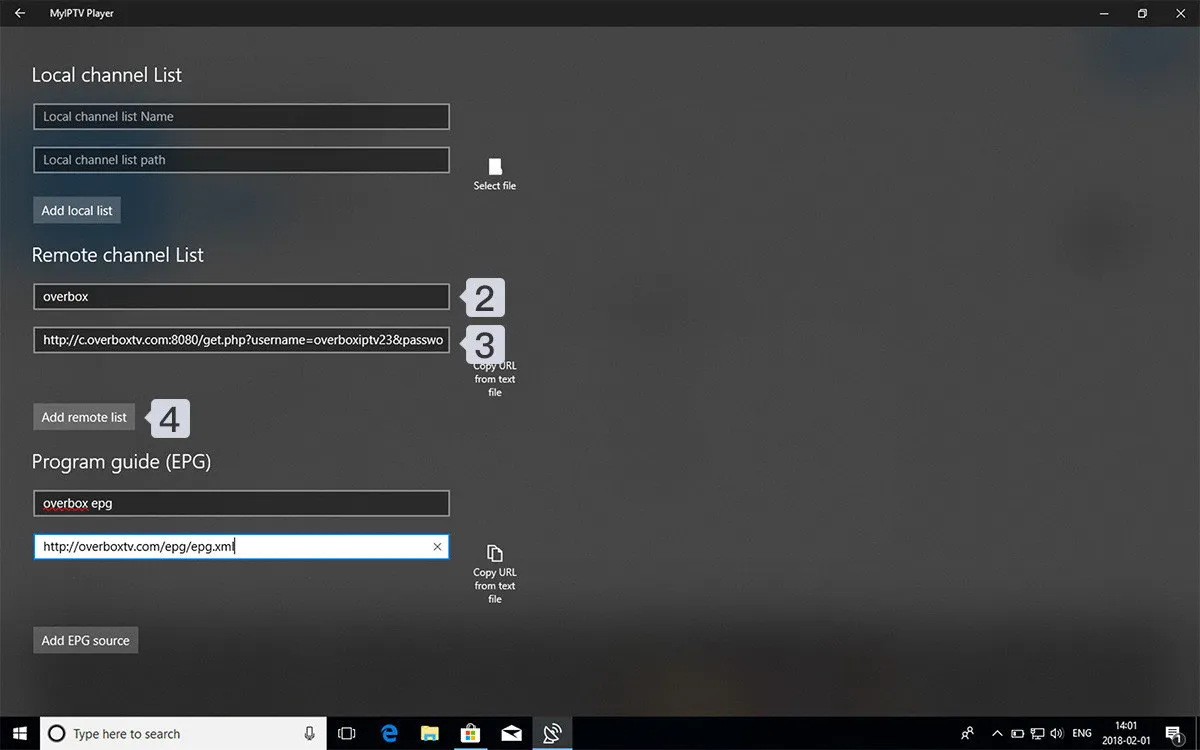
Type a name (for example “myiptv”) in the Remote channel list name field. Paste the M3U link from your IPTV provider into Enter remote source URL, then choose Add remote list.
Step 3 — Select the list to load
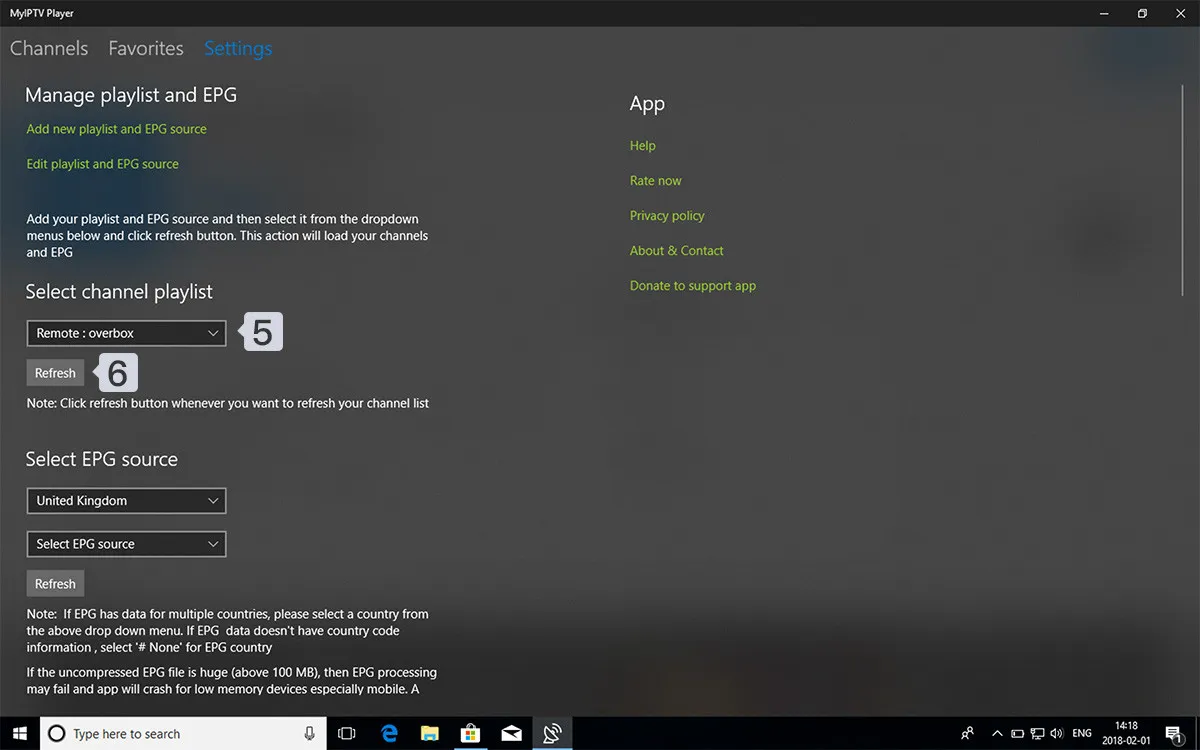
Return to Settings and pick your newly added playlist under Select Channel playlist.
Step 4 — Watch channels and VOD
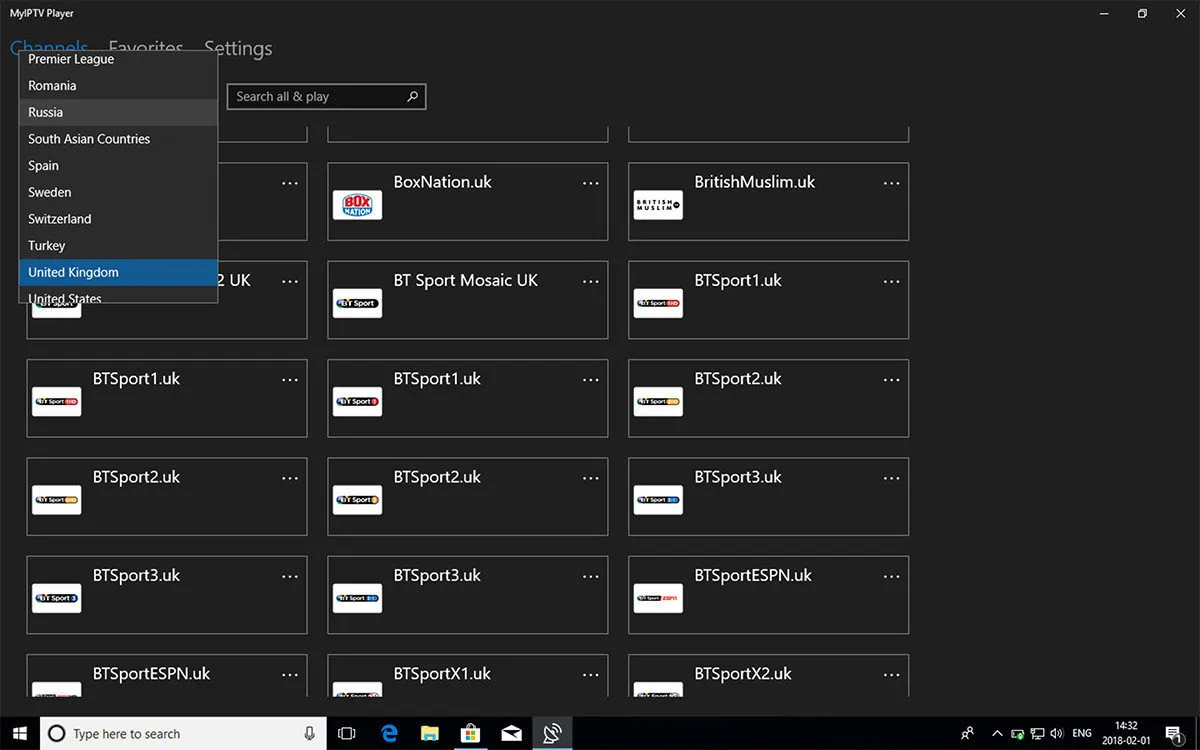
Go back to the Channels tab, select your desired country, and start watching live TV and video on demand.
Frequently asked questions
How can I add EPG to myIPTV Player?
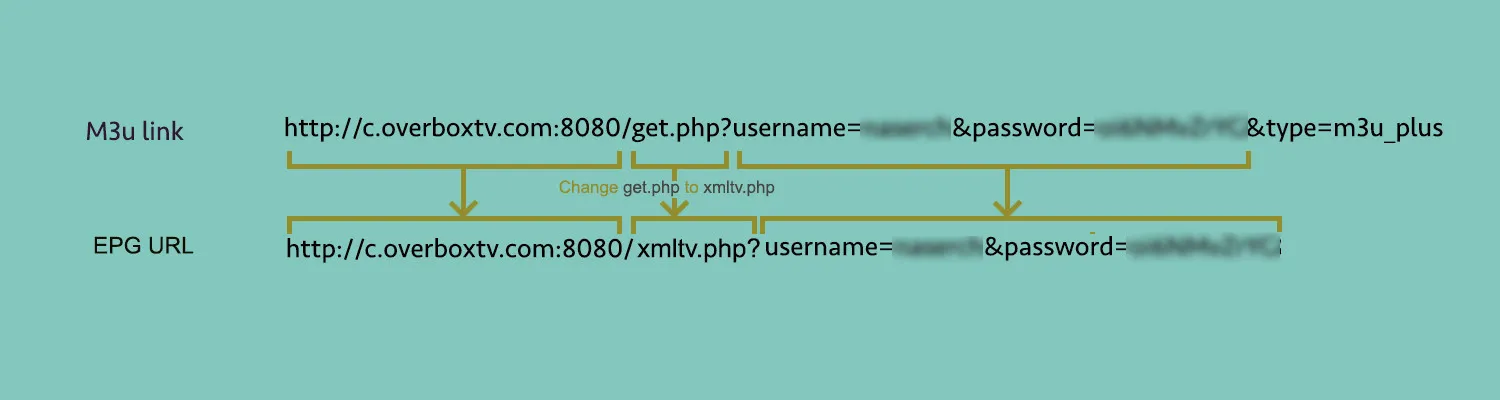
You can add the EPG URL during Step 2, under the Program guide (EPG) section.
Where do I find my EPG link?
Your EPG URL usually comes from the same source as your M3U link — check the details provided by your IPTV provider.