
How to Install IPTV on IP Television (iOS / Apple TV)
3.2Set up IPTV on the IP Television app for iPhone, iPad, Apple TV and Mac. Add your M3U playlist manually in a few minutes and start streaming live channels.
IP Television is a lightweight IPTV player for iPhone, iPad, Apple TV, and Mac OS X. It loads channels from an M3U playlist, so setup is quick and straightforward. You can download it from the App Store.
Before you start
- An internet connection
- An active IPTV subscription
- The M3U playlist URL from your IPTV provider
How to set up IP Television
Setup takes about five minutes.
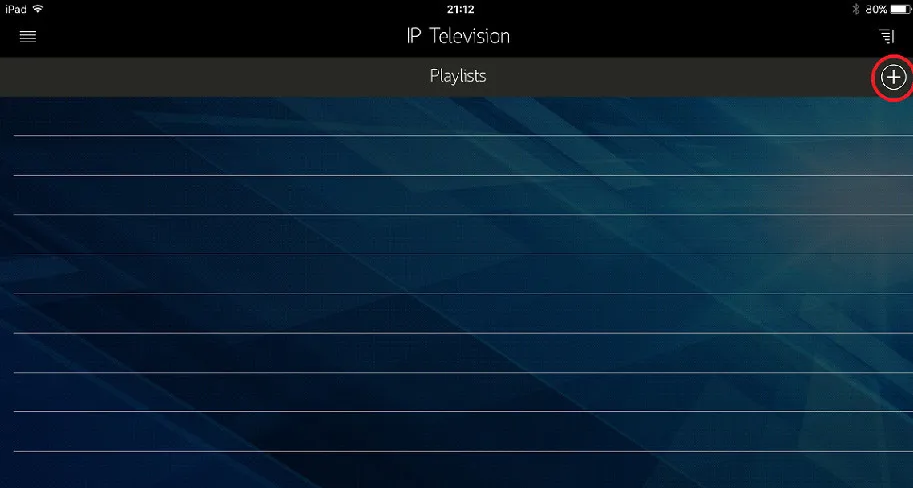
Step 1 — Tap the plus icon
Open the app and tap the + icon in the top-right corner.
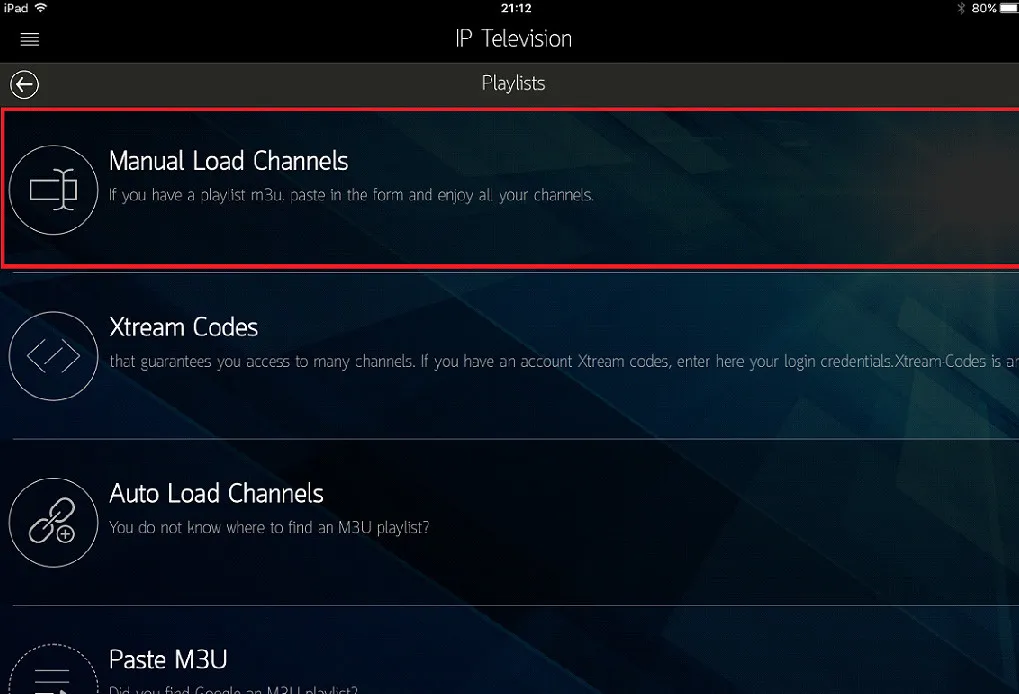
Step 2 — Choose manual entry
Select Manual Load Channels from the list of options.
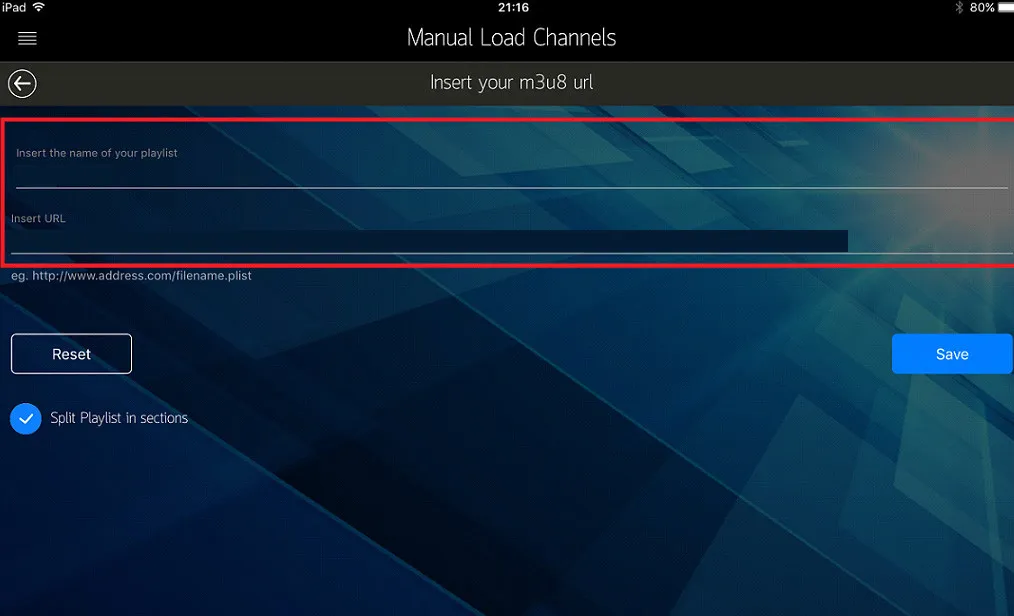
Step 3 — Add your M3U playlist
- Enter a playlist name of your choice.
- Paste the complete M3U playlist URL from your provider.
- Tap Save to confirm.
- Restart the app to begin streaming.
Tip: If your channels don’t load, double-check the M3U URL for typos and make sure your subscription is active.
Alternatives for Apple TV
If you’d like to try other players, GSE Smart IPTV and iPlayTV are both solid options for watching IPTV on Apple TV.